
 Join Discord
How to Fix Meccha Chameleon Cheats Not Working After an Update
Open the game by itself and check where it stops. If it reaches its menu, look for the exact Inferno product and its latest status before you compare the loader, menu, aim or ESP. The timeline below helps you describe whether the game changed, a Meccha Chameleon cheat update arrived, or both happened before the first failure.
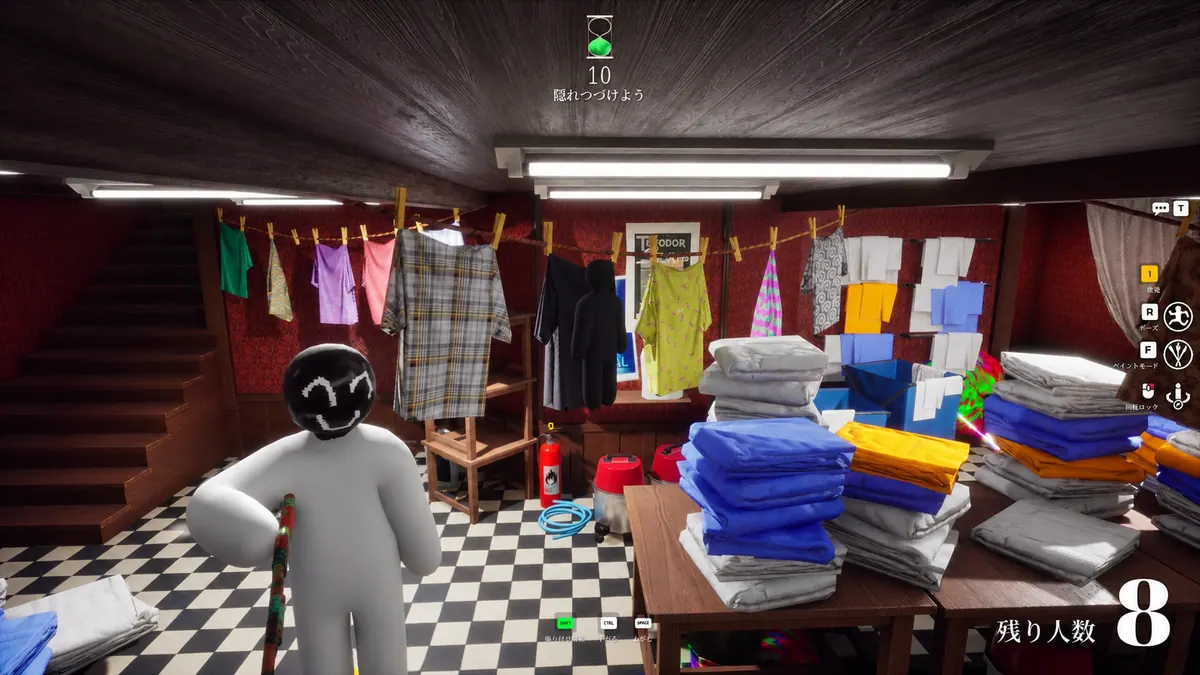
Find the Inferno Meccha cheat status after a game update
Open the SurchCheats status page and look for Inferno Meccha by name. If you find a notice about a Meccha Chameleon cheat update, keep its date and wording. A notice about another product is a separate update. If you do not see an entry for yours, give support the product name and the time you looked.
Compare the last working match with the first after the Meccha update
Put the game update, the last working match and the first failed attempt in order. Add the time of a Meccha Chameleon cheat update if you saw a dated notice for it. If the times are approximate, say so. A useful report might show that the game updated overnight and that you first noticed missing ESP in a match the next afternoon.
Meccha Chameleon will not reach the game menu on its own
With the cheat loader closed, open the game and note the last screen it reaches. If the game still closes there, record that result next to the first failure you saw after the Meccha Chameleon cheat update. Capture the game or launcher error if one appears. The crash guide covers what to compare when a window actually closes.
The Meccha cheat loader never opens after the update
Use the loader guide if the file from your order never produces a window. If a window opens, keep the last label you can see and the exact text of any error. If there was a Meccha Chameleon cheat update, note whether you saw it before or after the window stopped opening. Preserve any security warning and send the wording to support.
The Meccha cheat menu goes missing after the loader opens
After a Meccha Chameleon cheat update, write down the last loader step that still works. Check whether the game still responds when the panel fails. If you can move the camera, say whether an ESP drawing remains visible. Use the menu guide for that result and keep a panel that never opened separate from one you saw disappear.
Meccha aimbot stops after the update while ESP keeps drawing
A Meccha Chameleon cheat update can be part of the timing you report even when only one feature fails. Check the crosshair on one player who stays in view and note whether their ESP keeps drawing. If the rest of the game responds, use the aimbot guide. Include whether aim never moved or moved once and released.
Meccha hunter or survivor ESP disappears after the update
Record which player role and drawing you can reproduce. Inferno Meccha lists separate hunter and survivor ESP choices. If only one drawing fails after a Meccha Chameleon cheat update, say which one remains visible. The flickering ESP guide covers the case where the missing drawing comes back during the same encounter.
The Meccha cheat stopped working after you changed a setting
If you changed a value before your first failure, put that change on the timeline as well. A Meccha Chameleon cheat update and a settings change can happen on the same day. Record the exact setting if you remember it and describe the first failed screen. You can pass on both observations without guessing which change explains the failure.
The first Meccha cheat launch fails after an update
Say if the failed launch was your first attempt with Inferno. You can still report when the game updated and any Meccha Chameleon cheat update notice you saw. There is no prior working match to compare in that case. Keep the order reference, the first screen you reached and the exact error together.
Which Meccha Chameleon cheat are you using?
Open the Meccha Chameleon cheats category or match the product to your SurchCheats order.
Record what still works after the Meccha cheat update
Pick one attempt and write what still works in sequence. Start with the game menu, then the first loader screen you reached, then any cheat menu or feature you actually saw. Attach the status notice or error message if it adds detail. Leave any key or unrelated account data out of the capture.
Contact SurchCheats support with those details.